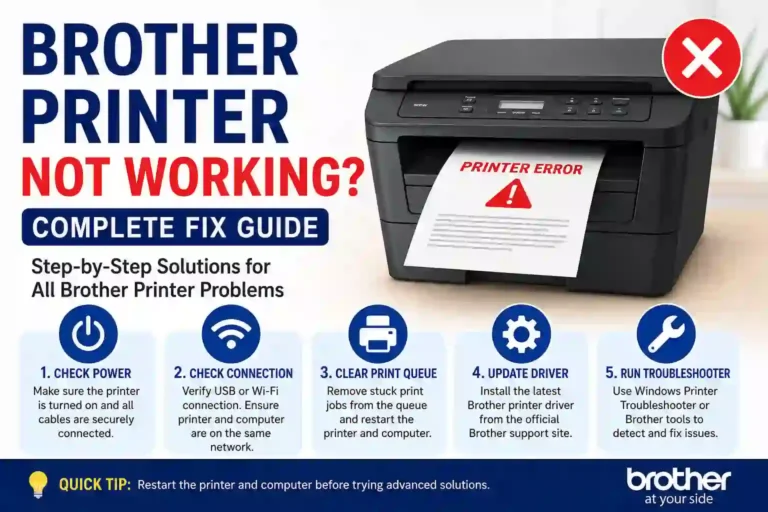
Introduction in Brother Printer Not Working
A Brother printer that suddenly stops working can be frustrating, especially when Windows says the printer is ready but nothing actually prints. The good news is that most Brother printer not working problems come from a few common areas: connection issues, stuck print jobs, incorrect printer settings, outdated drivers, or network configuration problems.
You don’t need to replace the printer right away. Work through the fixes below in order. Start with the quick checks, then move into the Windows, USB, Wi-Fi, driver, and network troubleshooting steps.
Why Is My Brother Printer Not Working?
Before changing drivers or resetting anything, it helps to identify where the problem is coming from. A printer can appear connected while the computer is actually sending print jobs to the wrong device or an outdated network address.
Common causes include:
- The printer is turned off or showing an error.
- USB or power cables are loose.
- The printer is offline in Windows.
- A print job is stuck in the queue.
- The wrong Brother printer is selected.
- The printer and computer are connected to different Wi-Fi networks.
- The printer’s IP address has changed.
- The Brother printer driver is damaged or outdated.
- Windows is using an incorrect printer port.
- Firewall or network settings are interfering with communication.
- The printer needs a firmware or software update.
Brother’s own troubleshooting documentation recommends checking the physical connection, restarting the machine, clearing the print job when necessary, and investigating the network or driver configuration when basic checks don’t solve the problem.
Quick Fixes for Brother Printer Not Working
Try these simple fixes before moving to the detailed steps.
1. Restart the printer
Turn the Brother printer off and wait about 30 seconds. Turn it back on and allow it to finish its startup process.
Then restart your computer.
This sounds basic, but restarting can clear temporary communication problems and reset the printer’s connection.
2. Check the printer display
Look for messages such as:
- Paper Jam
- No Paper
- Replace Toner
- Ink Low
- Cover Open
- Offline
- Cannot Print
- Wi-Fi Error
Resolve any physical error shown on the printer before troubleshooting Windows.
3. Check the connection
For USB printers, disconnect and reconnect the USB cable securely. If possible, try another USB port.
For wireless printers, confirm that the printer and computer are connected to the same Wi-Fi network. Brother’s wireless guidance specifically recommends checking the SSID and network password and making sure both devices use the same wireless router.
4. Print a test page
If Windows allows it, print a test page. This helps determine whether the problem is with Windows or the printer itself.
If the printer can produce a test page but your document does not print, the problem is more likely related to the application, print queue, driver, or printer settings.
Step 1: Check Windows Printer Status and Clear the Queue
One of the most common reasons a Brother printer not working problem appears is a stuck print job.
A failed document can remain in the queue and prevent newer documents from printing.
Open your printer settings
On Windows 11:
- Open Settings.
- Select Bluetooth & devices.
- Select Printers & scanners.
- Select your Brother printer.
- Open the printer queue.
Check whether several documents are waiting.
Cancel stuck documents
If you see a document that has been stuck for a long time:
- Open the print queue.
- Cancel the pending documents.
- Wait until the queue becomes empty.
- Try printing again.
Also check whether Windows has marked the printer as offline.
If the printer is available but Windows shows Offline, restart both the printer and computer before changing advanced settings.
Set the Brother printer as the default printer
If you have multiple printers installed, Windows might be sending the document somewhere else.
Go to:
Settings → Bluetooth & devices → Printers & scanners
Select your Brother printer and set it as the default printer if appropriate.
Then try printing a simple document.
Step 2: Fix the USB or Wi-Fi Connection
If the printer doesn’t communicate with the computer, Windows cannot send the print job correctly.
For a USB Brother printer
Check these items:
- Make sure the printer is powered on.
- Disconnect and reconnect the USB cable.
- Try a different USB port.
- Avoid using an unreliable USB hub while troubleshooting.
- Check whether Windows detects the printer after reconnecting it.
If Windows doesn’t recognize the printer at all, the problem may involve the cable, USB port, driver, or printer hardware.
For a Wi-Fi Brother printer
Wireless printing requires more than simply seeing the printer’s name in Windows.
Your printer and computer should normally be connected to the same local network.
Check the printer’s network information and verify the Wi-Fi name.
If your router was recently replaced or its Wi-Fi password changed, the printer may still be configured for the old network.
In that situation, reconnect the printer to the current wireless network using the printer’s network setup options.
Brother also recommends resetting the machine’s network connection and setting up the wireless connection again when necessary.
Restart the network equipment
If several devices are having connection problems, restart your router according to its manufacturer’s instructions.
After the network becomes available, reconnect the computer and check the Brother printer again.
Step 3: Repair the Brother Printer Driver and Software
A printer can be physically connected and still refuse to print because Windows is using a damaged or incorrect driver.
This becomes especially likely after:
- A Windows update
- Reinstalling Windows
- Changing computers
- Changing the printer’s connection method
- Removing and reinstalling printer software
Download the correct Brother software
Use Brother’s official Support & Downloads page and search for your exact printer model.
Don’t choose a driver simply because the printer name looks similar. Brother has many models with closely related names, and the correct software depends on the exact model and operating system.
Brother currently provides Full Driver & Software Packages for supported models, which can contain the drivers and associated software required for the printer.
Reinstall the driver
A clean reinstall can help when the existing driver installation is damaged.
A typical process is:
- Remove the Brother printer from Windows.
- Uninstall the related Brother printer software if necessary.
- Restart Windows.
- Download the correct package from Brother Support.
- Install the software.
- Follow the setup instructions for USB or wireless connection.
- Print a test page.
Brother’s wireless troubleshooting documentation also recommends reinstalling the driver when network troubleshooting doesn’t resolve the printing problem.
Update the printer firmware
Firmware controls important functions inside the printer.
If Brother provides a firmware update for your specific model, follow the official instructions carefully. Brother provides a Firmware Update Tool through its support downloads.
Don’t interrupt the printer’s power while firmware is being updated.
Step 4: Fix Brother Printer Network and IP Address Problems
This is one of the most important fixes for a wireless Brother printer not working problem.
Your printer can still appear installed in Windows even when Windows is trying to communicate with an old IP address.
For example, your printer might previously have used one local IP address. After the router assigns a different address, Windows may continue trying to contact the old one.
The result?
The printer looks installed, but the print job never reaches it.
Use Brother Network Connection Repair Tool
Brother provides a Network Connection Repair Tool designed to help restore network printing. According to Brother, the tool can locate the printer and update its IP address within the printer driver.
The general process is:
- Make sure the Brother printer is powered on.
- Make sure the printer is connected to the same network as the computer.
- Download the Network Connection Repair Tool from Brother Support.
- Run the tool.
- Follow the instructions shown on screen.
- Try printing again.
Brother’s current download information lists the Network Connection Repair Tool as a supported utility for compatible products.
Important note about static IP addresses
Be careful if your network uses a manually configured static IP address.
Brother specifically warns that automatically repairing the connection can change the IP address, so the repair tool may not be appropriate for networks where a static IP has been deliberately configured.
For a typical home network using automatic addressing, however, the repair tool can be a useful troubleshooting step.
Check the printer port in Windows
If the printer still refuses to print, Windows may be using an incorrect port.
Brother’s current troubleshooting instructions recommend checking the printer’s IP address and selecting an appropriate standard TCP/IP port when a test page cannot be printed.
You can check this from:
Settings → Bluetooth & devices → Printers & scanners → Your Brother printer → Printer properties → Ports
Compare the configured port with the printer’s current network information.
Don’t randomly change ports. If you’re unsure which one belongs to the printer, use Brother’s official troubleshooting instructions or reinstall the printer using its current connection.
Step 5: Run a Complete Brother Printer Test
At this point, we want to determine exactly where the failure occurs.
Test 1: Can the printer print its own information?
Depending on the model, use the printer’s control panel to print a test page, printer settings page, or network configuration report.
If the printer can print internally, the hardware is at least capable of producing a printout.
That points us toward Windows, drivers, connection settings, or network communication.
Test 2: Can Windows print a test page?
Open the printer’s properties and try a Windows test page.
If the test page works but Chrome, Word, or another application doesn’t print, investigate that particular application’s print settings.
If the test page fails, continue troubleshooting the printer connection and driver.
Test 3: Check whether the printer is detected
Look under:
Settings → Bluetooth & devices → Printers & scanners
If the Brother printer repeatedly disappears, appears with errors, or cannot be added, the issue may be related to the connection, driver, or network.
Test 4: Try another application
Open a simple application and print a small document.
For example, if printing fails from a browser, try another application.
This separates a printer-wide problem from an application-specific problem.
Test 5: Recheck after every major change
Don’t make ten changes at once.
Make one change, print a test page, and see what happens.
That makes troubleshooting much easier because you’ll know which fix actually solved the problem.
Common Brother Printer Problems and the Best Fix
| Problem | First Fix to Try |
|---|---|
| Brother printer says Offline | Restart printer and computer, then check Windows status |
| Brother printer connected but won’t print | Clear the print queue |
| Brother wireless printer not working | Check that printer and PC use the same Wi-Fi |
| Brother printer disappeared from Wi-Fi | Reconnect the printer to the current network |
| Windows cannot find Brother printer | Check USB/network connection and reinstall software |
| Brother printer prints nothing | Check printer status, paper, ink/toner, and test page |
| Brother printer stopped after Windows update | Reinstall/update the Brother driver |
| Wireless printer worked before but stopped | Check IP address and network configuration |
| Brother printer driver not working | Remove and reinstall the official driver |
| Test page won’t print | Use Brother’s Network Connection Repair Tool and check the printer port |
FAQ
Why is my Brother printer connected but not printing?
The printer may be connected physically but not communicating correctly with Windows. Check the print queue, printer status, default printer, driver, and network connection.
For wireless models, verify that the computer and printer are on the same network.
Why does my Brother printer say Offline?
Windows may have lost communication with the printer, or the printer may have changed its network address. Restart both devices and check the printer’s network connection.
For compatible Windows models, Brother’s Network Connection Repair Tool can automatically repair certain IP-address-related connection problems.
Why is my Brother wireless printer not working?
Start by checking the Wi-Fi connection. The printer and computer should normally be connected to the same router/network.
If the network was recently changed, reconnect the printer to Wi-Fi and reinstall the printer if necessary.
Why won’t my Brother printer print from Windows 11?
Possible causes include an incorrect driver, printer queue problem, offline status, incorrect port, or network connection issue.
Use the correct Brother software for your exact model and Windows version. Brother’s current download pages provide model-specific driver and software packages.
Should I reinstall my Brother printer driver?
Yes, if basic connection and queue troubleshooting doesn’t work. A damaged or incorrect driver can prevent Windows from communicating properly with the printer.
Download the driver from Brother’s official support site rather than an unknown third-party driver website.
How do I fix a Brother printer that stopped working after changing Wi-Fi?
Reconnect the printer to the new wireless network. Then check whether Windows is still configured with the printer’s previous network information.
If necessary, use Brother’s Network Connection Repair Tool or reinstall the printer using its current network connection.
What if none of these fixes work?
If the printer cannot print even its own internal test or configuration page, check the model-specific Brother manual and support documentation.
If the printer reports a persistent hardware error, mechanical problem, or other service message, professional Brother support may be necessary.
Final Thoughts
A Brother printer not working problem doesn’t automatically mean the printer is broken. In many cases, the real issue is much simpler: a stuck print queue, offline status, Wi-Fi connection, changed IP address, incorrect port, or damaged driver.
Start with the easy checks. Restart the printer, clear the queue, verify the connection, and try a test page. If you’re using Wi-Fi, confirm that both devices are on the same network. If the problem continues, move on to the official Brother driver, firmware, and Network Connection Repair Tool.
The safest approach is to use Brother’s official support resources for your exact model rather than downloading random drivers from third-party websites.
If your printer still isn’t working after completing all five steps, note the exact Brother model, Windows version, connection type (USB or Wi-Fi), and any error message shown on the printer. Those details make the next troubleshooting step much easier to identify.
Official resources: