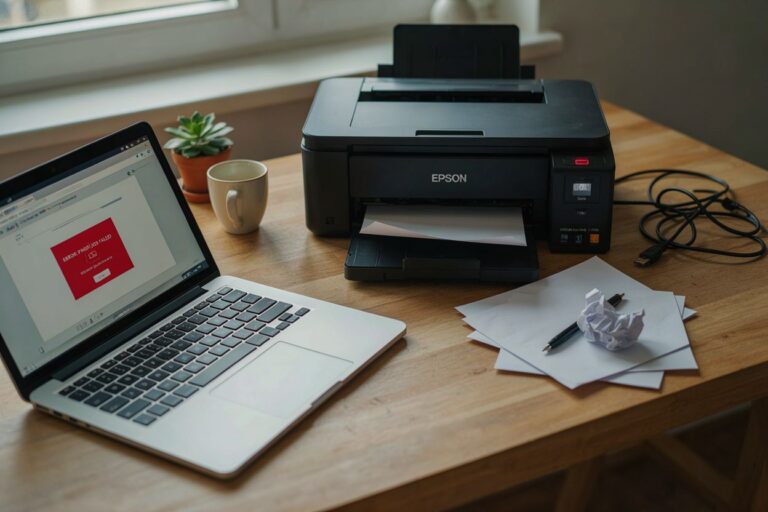
Introduction in Epson Printer Not Working Issues
If your Epson printer not working issue has suddenly interrupted your day, you’re not alone. Whether your printer refuses to print, appears offline, or won’t connect to your computer, most Epson printer problems can be solved without replacing the device.
In this guide, you’ll learn the most common reasons an Epson printer stops working, along with step-by-step solutions that work for both Windows and macOS users in the United States. We’ll also cover wireless connection problems, driver issues, paper jams, and maintenance tips to help prevent future printing problems.
Why Is My Epson Printer Not Working?
Several issues can prevent an Epson printer from functioning correctly. Identifying the root cause makes troubleshooting much easier.
Common causes include:
- Printer is offline
- Loose USB or network connection
- Outdated printer driver
- Print queue errors
- Empty or clogged ink cartridges
- Paper jams
- Incorrect printer settings
- Windows print spooler issues
- Firmware problems
- Network or Wi-Fi interruptions
Featured Snippet Answer:
If your Epson printer is not working, first check its power, connection, paper, ink levels, and printer status. Then restart the printer, clear the print queue, update the driver, and run Epson’s troubleshooting tools.
1. Verify Basic Printer Connections
Before trying advanced fixes, confirm the basics.
Check the following:
- Printer is powered on
- Power cable is firmly connected
- USB cable is securely attached (if using USB)
- Wi-Fi indicator is connected
- No blinking error lights
- Paper is properly loaded
- Ink cartridges are installed correctly
If using Wi-Fi, ensure both the computer and printer are connected to the same wireless network.
2. Restart the Printer and Computer
A simple restart often fixes temporary communication problems.
Restart your Epson printer
- Turn off the printer.
- Unplug the power cable.
- Wait 60 seconds.
- Plug it back in.
- Turn it on.
Next, restart your computer before trying another print job.
3. Check If the Epson Printer Is Offline
One of the most common issues is Windows showing the printer as offline.
Windows 11 & Windows 10
- Open Settings
- Select Bluetooth & Devices
- Choose Printers & Scanners
- Select your Epson printer
- Open the printer queue
- Disable Use Printer Offline
Also make sure your Epson printer is set as the Default Printer.
4. Clear Stuck Print Jobs
A corrupted print job can prevent new documents from printing.
Clear the print queue
- Open Printers & Scanners
- Select your Epson printer
- Open Print Queue
- Cancel every pending document
If documents won’t clear:
- Restart the Print Spooler service
- Reboot Windows
- Try printing again
5. Update or Reinstall the Epson Printer Driver
An outdated or damaged driver is a major cause of Epson printer problems.
Update the driver
- Open Device Manager
- Expand Printers
- Right-click your Epson printer
- Select Update Driver
If problems continue:
- Uninstall the printer
- Restart your PC
- Install the latest Epson driver for your model
Using the correct driver is especially important after major Windows updates.
6. Fix Epson Printer Not Printing
If the printer appears online but won’t print, try these solutions.
Check ink levels
Low or empty cartridges may stop printing.
Replace cartridges if necessary.
Run a Nozzle Check
Print quality problems often result from clogged print heads.
Run:
Maintenance → Nozzle Check
If missing lines appear:
Run:
Head Cleaning
Repeat only if necessary, since excessive cleaning wastes ink.
7. Resolve Wireless Connection Problems
Many users searching for Epson Printer Not Printing actually have Wi-Fi connection issues.
Reconnect the printer
- Restart your router
- Restart the printer
- Reconnect to Wi-Fi
- Confirm the correct SSID
- Avoid guest networks
If available, use the Epson setup utility to reconnect the printer.
8. Check for Paper Jams
Paper jams aren’t always obvious.
Inspect:
- Rear paper feed
- Front output tray
- Inside printer rollers
- Duplex unit
- Paper cassette
Always remove jammed paper slowly to avoid damaging internal rollers.
9. Disable Pause Printing
Sometimes printing is accidentally paused.
Open:
Printer Queue
Ensure:
- Pause Printing is unchecked
- Use Printer Offline is disabled
Then send a new print job.
10. Run Windows Printer Troubleshooter
Windows includes a built-in printer repair tool.
Steps
Settings → System → Troubleshoot → Other Troubleshooters → Printer → Run
The troubleshooter can automatically detect:
- Driver conflicts
- Offline status
- Print spooler errors
- Communication issues
11. Update Epson Printer Firmware
Firmware updates improve:
- Reliability
- Wireless connectivity
- Compatibility
- Security
- Bug fixes
Only install firmware updates from Epson’s official support website.
12. Reset the Epson Printer
If nothing works, resetting the printer may resolve persistent issues.
Most Epson printers include reset options inside:
Settings → Restore Default Settings
Some models also support network-only resets, which preserve print settings while restoring Wi-Fi configuration.
Common Epson Printer Error Symptoms
| Problem | Possible Cause | Solution |
|---|---|---|
| Printer Offline | Connection issue | Reconnect printer |
| Blank Pages | Clogged nozzles | Run Head Cleaning |
| Paper Jam | Jammed paper | Remove carefully |
| Slow Printing | High-quality mode | Use Standard mode |
| Not Printing | Driver issue | Reinstall driver |
| Wi-Fi Disconnects | Weak signal | Move closer to router |
| Printer Not Detected | USB/Wi-Fi problem | Reconnect device |
| Poor Print Quality | Dirty print head | Clean print head |
Common Mistakes to Avoid
Avoid these common troubleshooting mistakes:
- Turning the printer off during firmware updates
- Installing the wrong printer driver
- Using incompatible ink cartridges
- Ignoring printer error lights
- Running too many head cleaning cycles
- Connecting to the wrong Wi-Fi network
- Removing paper forcefully during a jam
These mistakes can make the problem worse or even damage the printer.
Maintenance Tips to Prevent Epson Printer Problems
Regular maintenance can significantly reduce printer issues.
Best practices include:
- Print at least one page every week.
- Keep the printer dust-free.
- Use genuine or compatible high-quality ink.
- Update printer drivers regularly.
- Install firmware updates when available.
- Avoid overloading the paper tray.
- Store paper in a dry environment.
- Shut down the printer properly instead of unplugging it.
Epson Printer Troubleshooting Checklist
| Check | Status |
|---|---|
| Printer powered on | ✓ |
| USB/Wi-Fi connected | ✓ |
| Printer online | ✓ |
| Paper loaded | ✓ |
| Ink available | ✓ |
| Print queue cleared | ✓ |
| Driver updated | ✓ |
| Firmware updated | ✓ |
| Print head cleaned | ✓ |
| Test page printed | ✓ |
Frequently Asked Questions For Epson printer not working
1.Why is my Epson printer not working even though it’s connected?
Your printer may be offline, have a stuck print queue, outdated drivers, or communication issues. Restart the printer, clear pending jobs, and update the printer driver.
2.Why is my Epson printer not printing anything?
This can happen because of clogged print heads, empty ink cartridges, offline status, incorrect printer settings, or outdated drivers.
3.How do I reset my Epson printer?
Open your printer’s settings menu and choose Restore Default Settings. Some Epson models also provide a separate network reset option.
4.Why does my Epson printer say offline?
Windows may have enabled Use Printer Offline, or the printer may have lost its USB or Wi-Fi connection. Reconnect the printer and disable offline mode.
5.Do Epson printers need driver updates?
Yes. Installing the latest drivers improves compatibility, fixes bugs, and ensures reliable communication with Windows and macOS.
Final Thoughts in Epson printer Not printing
An Epson printer not working problem can usually be resolved by following a structured troubleshooting process. Start with the basics—checking power, connections, paper, and ink—before moving on to clearing the print queue, updating drivers, cleaning the print head, or resetting the printer. Most issues are caused by software settings, network connectivity, or routine maintenance rather than hardware failure.
If you’ve completed all the steps in this guide and your printer still isn’t working, the issue may be related to a hardware component such as the print head, logic board, or paper feed mechanism. In that case, contacting Epson support or an authorized repair center is the next appropriate step.
Epson printer Not Working
By keeping your printer’s drivers and firmware up to date, printing regularly to prevent clogged nozzles, and performing basic maintenance, you can reduce the chances of future problems and keep your Epson printer running reliably for years.
Epson printer Not working